
A good visual website editor lets you change a page by clicking it instead of describing the change or hunting through code. That is exactly what Click Edit brings to AI Codes It: click any heading, button, image or section in your live preview, change it, and the change is saved into your real project files.
This guide shows the seven things you can do with it, how it keeps your code clean on PHP, React and Next.js sites, and when it is faster than asking the AI.
What is a visual website editor?
A visual website editor shows your page the way visitors see it and lets you edit it in place. You point at the thing you want to change, adjust it with simple controls, and see the result immediately.
The alternative is editing code: finding the right file, the right line and the right CSS property. That is powerful, but slow for small changes. Asking an AI is the third way, and it is great for big changes, but describing "the second heading, a bit bigger" in words is often more effort than the change itself.
Here is how the three approaches compare for everyday edits:
| Task | Code editor | Asking the AI | Visual website editor |
|---|---|---|---|
| Fix a typo in a heading | Find the file and line | Describe it in a message | Double-click and type |
| Make a button bigger | Find the CSS rule | "Make the button bigger" | Change the size field |
| Swap a photo | Edit the image path | Name the image and the new URL | Paste the new image URL |
| Add a whole new section | Write HTML and CSS | Describe it once | Not the right tool |
The sweet spot is clear: use the visual editor for the many small visual details, and the AI for new pages, new sections and logic.
How the visual website editor in AI Codes It works
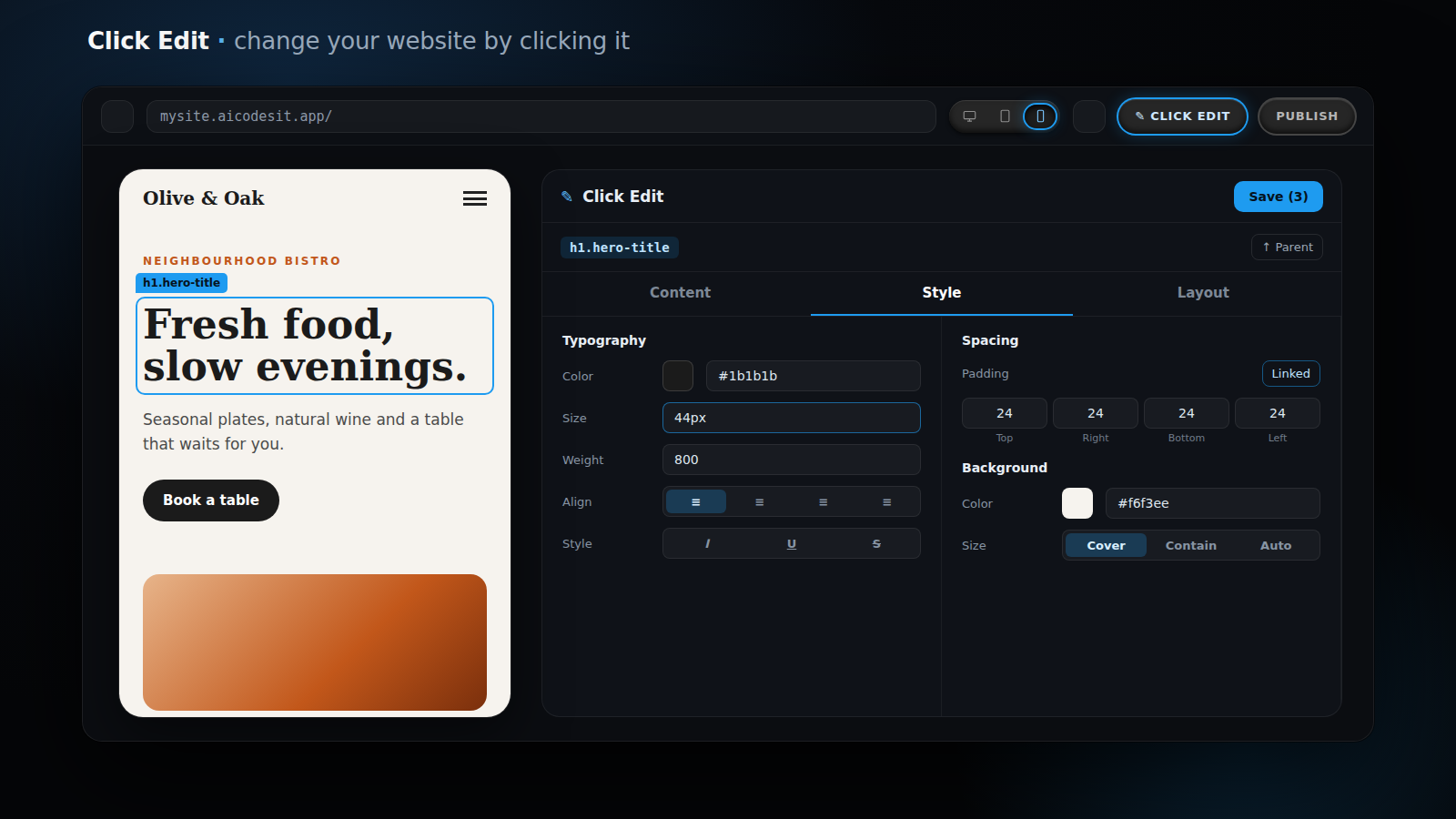
Click Edit lives in the simple view of the IDE. In the preview toolbar you will find a Click Edit button next to Publish. Click it and the edit panel opens beside your preview.
While you edit, the chat steps aside so the website gets the space. It is not closed, only hidden: your conversation and any AI reply that is still running carry on, and the chat comes back exactly as it was when you close the panel.
The panel follows your selected theme colour, so it feels like part of the IDE rather than a separate tool. Everything you change shows up in the preview instantly, and nothing is written to your files until you press Save.
1. Click to select any element
Move your mouse over the page and every element gets a thin outline, so you always know what a click will pick. Click once to select it. A small label shows what you selected, for example h1.hero-title, and the panel shows its settings.
Sometimes you click a word inside a button but meant the button itself. The ↑ Parent button selects the element around your selection, one level at a time, until you reach the section you want.
Links and forms are switched off while you edit. A click selects the link instead of opening it, and a form never submits by accident. When you close Click Edit, everything works normally again.
2. Double-click to type straight into the page
The fastest way to change text is not a text box at all. Double-click any text in the preview and start typing, just like in a document. The outline turns green and the label says "typing", so you know you are editing the words themselves.
Bold and italic words inside the text stay intact, because you are editing the real content in place. Press Escape when you are done, or simply click somewhere else.
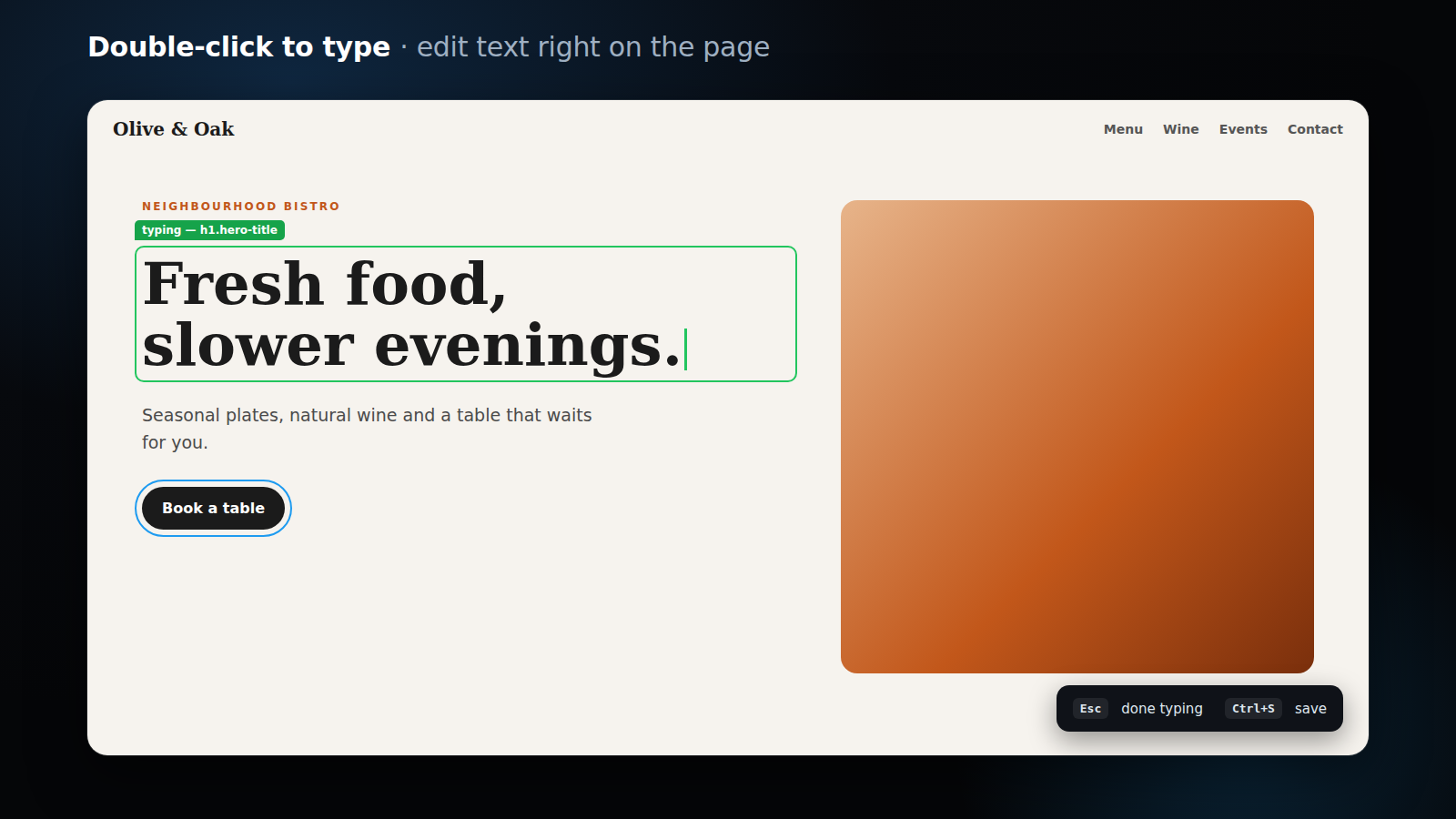
If you prefer, the Content tab shows the same text in a normal text box. For advanced cases there is an "Edit as HTML" switch, which shows the markup of the element so you can add a link or a line break by hand.
3. Change styles visually: typography, colours and spacing
The panel has three tabs, organised like the page builders you may already know: a label on the left and a control on the right. Sections open and close with a click, so you only see what you need.
The Style tab
- Typography: text colour with a colour picker, size, weight, alignment buttons, italic, underline, strikethrough and letter case, line height, letter spacing and font.
- Background: background colour, a background image or gradient, and how it is sized, positioned and repeated.
- Border: style, width, colour and rounded corners for each corner.
- Effects: an opacity slider, ready-made shadow presets, text shadow, transform and transition.
A Normal / Hover switch at the top of the Style tab lets you set what an element looks like when the mouse is over it, such as a button that changes colour. The Font list starts with the fonts your site already uses, and every colour picker offers the colours already on your page as one-click swatches, so new changes match your design.
The Layout tab
- Spacing: padding (space inside) and margin (space outside) for all four sides. The Link button sets one value for every side at once.
- Size: width, height, maximum width and minimum height.
- Display: block, flex or grid, and for flex layouts the direction, alignment, gap and wrapping.
- Position: relative, absolute, fixed or sticky, with offsets and stacking order.
If padding and margin are new to you, the CSS box model guide on MDN explains them with clear diagrams.
Small details that save time
- Number fields understand the arrow keys: up and down nudge the value, and holding Shift moves it in steps of ten.
- Typing a plain number means pixels, so "24" becomes 24px.
- Clearing a field removes your change and brings back the value your site's own CSS sets.
- Every drop-down always includes the element's current value, so you can see what it is before you change it.
4. Swap images and edit links without code
Select an image and the Content tab shows a thumbnail, the image URL and the alt text. Paste a new address and the preview updates immediately. Select a link and you can change its address and choose whether it opens in the same tab or a new one.
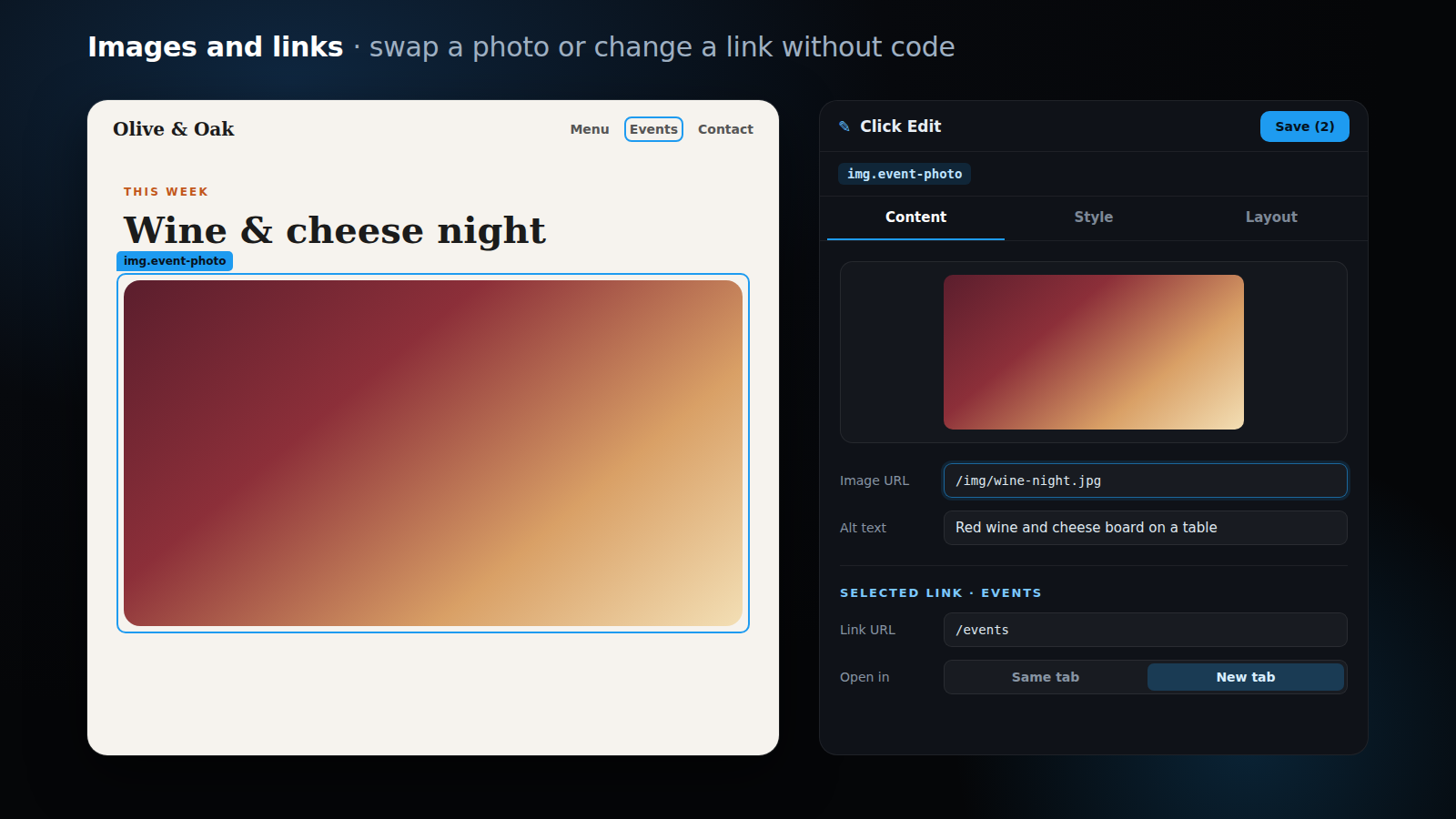
Take a second for the alt text. It describes the image for people using screen readers and helps search engines understand your page. The W3C images tutorial has simple rules for writing good alt text, such as describing what matters in the picture rather than starting with "image of".
5. Edit every screen size: desktop, tablet and mobile
Next to the refresh button in the preview toolbar you will find three switches: Desktop, Tablet (768 pixels wide) and Mobile (390 pixels wide). The preview area takes exactly that width, so you see your page the way a phone or tablet would show it.
This works in the normal preview and in Click Edit. On tablet and mobile the edit panel uses the room that is left, and its sections sit side by side, so you see the phone-size page and all its settings at the same time.
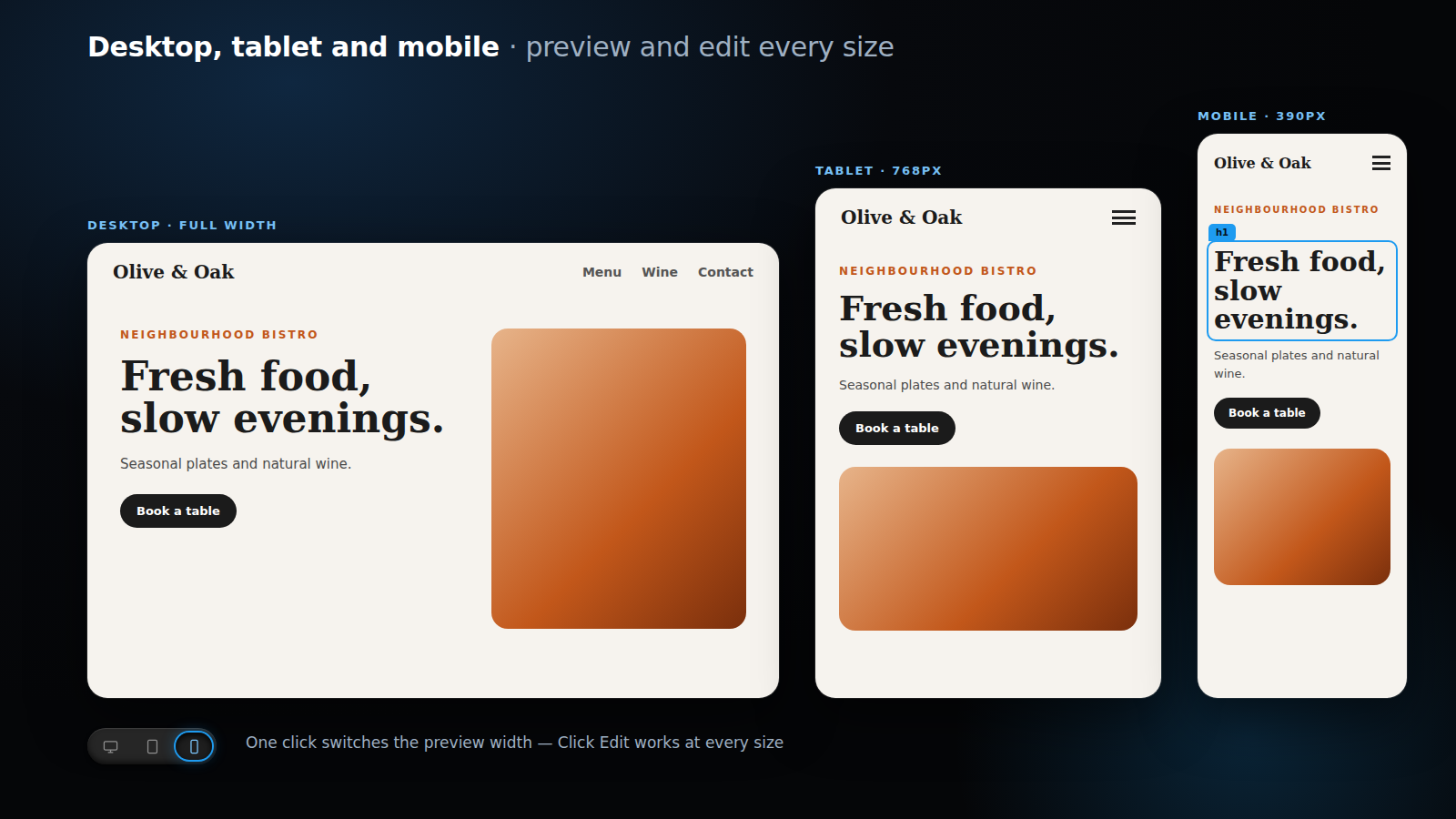
Each size has its own settings, the way professional page builders work. What you change on Desktop is the base for every screen. Switch to Tablet or Mobile and your changes apply only to that size: make the heading smaller on phones, reduce the padding on tablets, and the desktop design stays exactly as it was. A short note in the panel always tells you which sizes your edits affect, and when you switch sizes the panel shows that size's own values.
The Layout tab also has Hide on switches for desktop, tablet and mobile, so you can show a long image only on big screens or a "Call us" button only on phones. Hidden elements stay faded in the editor, so you can still select them. Google's responsive design basics on web.dev explain why pages should adapt to every screen.
6. Save many changes at once
You rarely change just one thing. Edit the heading, then the button, then the photo: Click Edit remembers the changes of every element you touched, even after you select the next one. The Save button shows how many are waiting, for example Save (3).
One click on Save, or Ctrl+S (Cmd+S on a Mac), writes all of them in one go. If you try to close the panel or reload the page while changes are waiting, Click Edit asks first, so nothing gets lost by accident.
If one change cannot be saved, the others still are, and the panel tells you which one failed and why. More about that below.
7. Keep your real code: a visual website editor for PHP, React and Next.js
Many visual editors only work on simple pages, or they rewrite your whole file when you save. Real websites are not one HTML file.
A PHP page includes a header and a footer from other files. A React app builds the page from components. The text you see in the preview is assembled from several places.
Click Edit handles that. When you save, it finds where each change belongs in your source files and edits exactly that spot:
- PHP includes: change the logo text and it is saved in
components/header.php, the file the text actually lives in, not in the page that includes it. Every page that uses that header shows the new text. - React and Next.js: styles are written the React way, as
style={{ color: "#c2571a" }}, and elements are matched by theirclassName. The React documentation on styles shows this format. - Images and links: the
srcorhrefis updated in the file that contains the tag. - Plain HTML pages: saved as the complete edited page, as before.
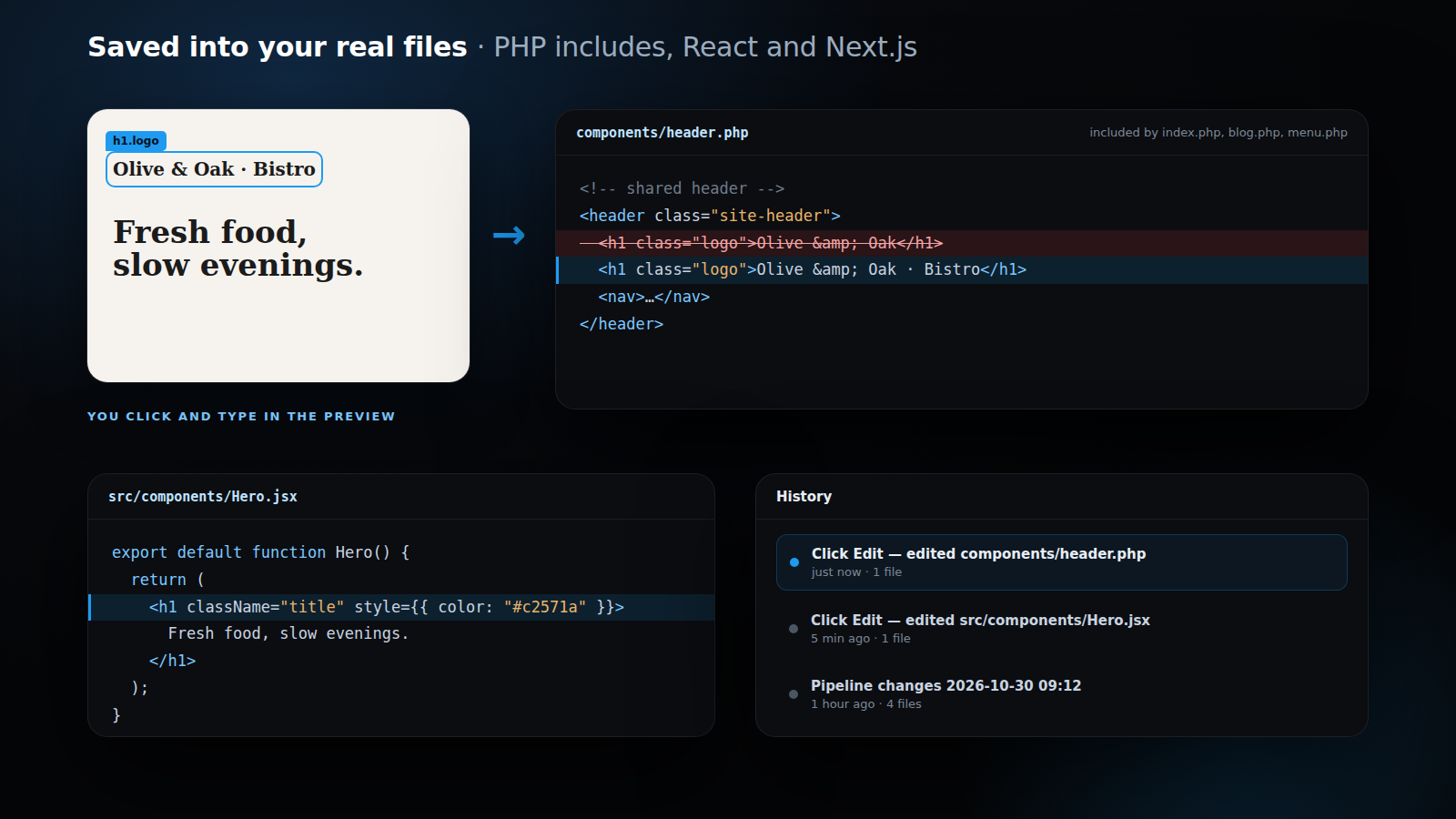
Only that spot changes. The rest of the file stays exactly as you or the AI wrote it, with the same formatting and comments, and no new files are created.
What the visual editor refuses to guess
Some text is not written in any file. It comes from your database, a PHP variable such as a price, or a React prop. Sometimes the same words appear in several places. In those cases Click Edit changes nothing and tells you why, for example "this text isn't in any file — it comes from the database or from PHP/JS code".
That is deliberate. A wrong guess could change the wrong page or break your code, so a clear message is the safer answer. You can then change the value where it lives, or ask the AI to do it for you.
Every visual edit is in your project History
Each save becomes its own entry in the project's History, named after what happened: "Click Edit — edited components/header.php". If one save touched two files, both are listed.
The entry contains only the files Click Edit changed. Other work you have not saved yet is not mixed in. It is pushed to your project's repository right away, so it is backed up like every other change.
If a change was not what you wanted, open History, see exactly what it did, and go back to the previous version. You can also simply open Click Edit again and change it back.
Who the visual website editor is for
Click Edit is built for anyone who wants to change their own website without waiting for someone else. That covers a surprisingly wide range of people.
- Small business owners who update opening hours, menus, prices in text and photos themselves, instead of sending an email and waiting a week.
- Freelancers and agencies who build a site with the AI and then polish spacing, colours and wording live with a client on a call.
- Developers who know exactly what they want changed and would rather click the element than search the codebase for the right class.
- Beginners who are learning how websites are put together. Seeing a padding value change the page as you type is one of the quickest ways to understand CSS.
Whatever your level, the result is the same: clean source files that you, the AI or another developer can keep working on, without a layer of builder-specific markup on top.
Visual website editor or AI chat: when to use which
Click Edit and the AI work best together. Here is a simple rule of thumb:
| Use the visual website editor for | Use the AI chat for |
|---|---|
| Text corrections and wording | New pages and new sections |
| Colours, sizes, spacing and alignment | Layout redesigns across many pages |
| Swapping images and fixing links | Forms, databases and logins |
| Different sizes or visibility on mobile | Content that comes from your data |
A typical workflow is to let the AI build the page, then polish the details yourself in the visual editor. It is quicker than writing another message, and you see the result while you work.
Your first visual edit in 60 seconds
- Open a project in the IDE and make sure you are in the simple view.
- Click Click Edit next to Publish. The chat steps aside and the edit panel opens.
- Double-click your main heading and type a new one.
- Click a button, open the Layout tab and give it more padding with the Link button.
- Switch the preview to Mobile and check that everything still fits.
- Press Save (or Ctrl+S). Your files are updated and the change appears in History.
Tips for clean results
- Select the smallest element you want to change. Click the heading itself rather than the section around it. Small, specific selections are easiest to place in your code.
- Use double-click for text. It keeps formatting inside the text and is the quickest way to edit words.
- Keep one main heading per page. Change the words freely, but keep the page structure clear for visitors and search engines, as Google's SEO starter guide recommends.
- Write alt text for every new image. It takes ten seconds and helps accessibility and search.
- Start on Desktop, then refine Tablet and Mobile. Desktop values are inherited by smaller screens until you override them.
Current limitations
We would rather tell you up front what the visual editor does not do yet:
- Tablet and mobile settings are supported on HTML, PHP, React and Next.js pages; Vue, Svelte and Astro templates can't store them yet.
- Text that comes from a database, a variable or a prop cannot be edited visually. Change it at its source or ask the AI.
- Elements whose classes are computed by code (for example
className={active ? "on" : "off"}) cannot be matched safely, so their styles are refused rather than guessed. - Click Edit is available in the simple view of the IDE on desktop-size screens.
Frequently asked questions
Do I need to know how to code to use the visual website editor?
No. Everything works with clicks, text boxes and colour pickers. Knowing a little HTML helps for the optional "Edit as HTML" mode, but you never need it.
Does Click Edit work on PHP websites?
Yes. It finds text and elements in your PHP pages and in the files they include, such as headers, footers and other components, and saves each change in the right file.
Does it work with React and Next.js?
Yes. Text written in your components and styles on elements with fixed class names are saved directly into the component file, in proper React syntax.
Does it create new files or rewrite my code?
No. It edits only the exact spot each change belongs to and leaves the rest of the file untouched. No new files are created. Plain HTML pages are saved as the whole edited page.
Can I undo a change?
Yes. Before saving, the Reset button undoes the unsaved changes of the selected element. After saving, every save is a separate entry in your project History, so you can go back to the previous version at any time.
Can desktop and mobile look different?
Yes. Pick Tablet or Mobile in the preview toolbar and your changes apply to that size only, while Desktop stays the base for every screen. You can also hide elements on specific devices.
Why was one of my changes not saved?
Because the visual editor could not find one safe place for it: the text comes from your data, appears in several places, or the element is built by code. The panel shows the reason. Change it at the source, or ask the AI.
Start editing visually today
Open any project, click Click Edit next to Publish, and change the first thing on your page you have been meaning to fix. If you are new to AI Codes It, our AI website builder creates the first version of your site, and the visual website editor lets you make it yours.
Start a project for free and edit your first page by clicking it.
Keep reading: Free AI Website Builder for Beginners · Free Website Templates · Long AI Chats Without Forgetting · The Mobile IDE and Chat Panel Update