Aicodesit just passed 2,000 users — and to celebrate, we are sharing the insider tips our own team uses to make AI credits last much longer. If you have ever watched your AI allowance drop faster than expected, this guide is for you.
No technical knowledge is needed. Everything below is about how you chat with the AI and a few switches you already have in the IDE. Pick two or three tips, try them in your next session, and you will feel the difference.
2,000 builders — thank you
When we started Aicodesit, the goal was simple: let anyone describe an app in plain English and get something real, hosted and working. Today more than 2,000 people have signed up and built landing pages, booking tools, dashboards, games and small businesses.
Every bug report, reply and feature request shaped the product. So instead of a generic "thank you", we wanted to give something useful back: the things we normally only tell each other internally about getting the most out of your AI credits.
How AI credits work, in one minute
Every time the AI answers, it does two things. First it reads: your message, the conversation so far and the files it needs. Then it writes: its answer and any code changes.
Your AI credits pay for both, measured in tokens — small pieces of text, roughly three quarters of a word each. Reading is usually the bigger part, because the AI re-reads the conversation on every reply.
That single fact explains most of what follows: the less the AI has to read from scratch, the further your AI credits go. If you want the full picture of how spending and limits are shown in the app, read our post on AI cost transparency and budget limits.
Tip 1: Caching makes follow-ups cheap
Here is the part most people don't know. When the AI reads something it read a moment ago, it doesn't pay full price again. The text is still cached, and cached reading costs only a fraction of fresh reading.
AI providers document this openly — for example, Anthropic explains prompt caching in its developer docs. In practice it means your second, third and tenth message in the same chat are much cheaper than the first one.
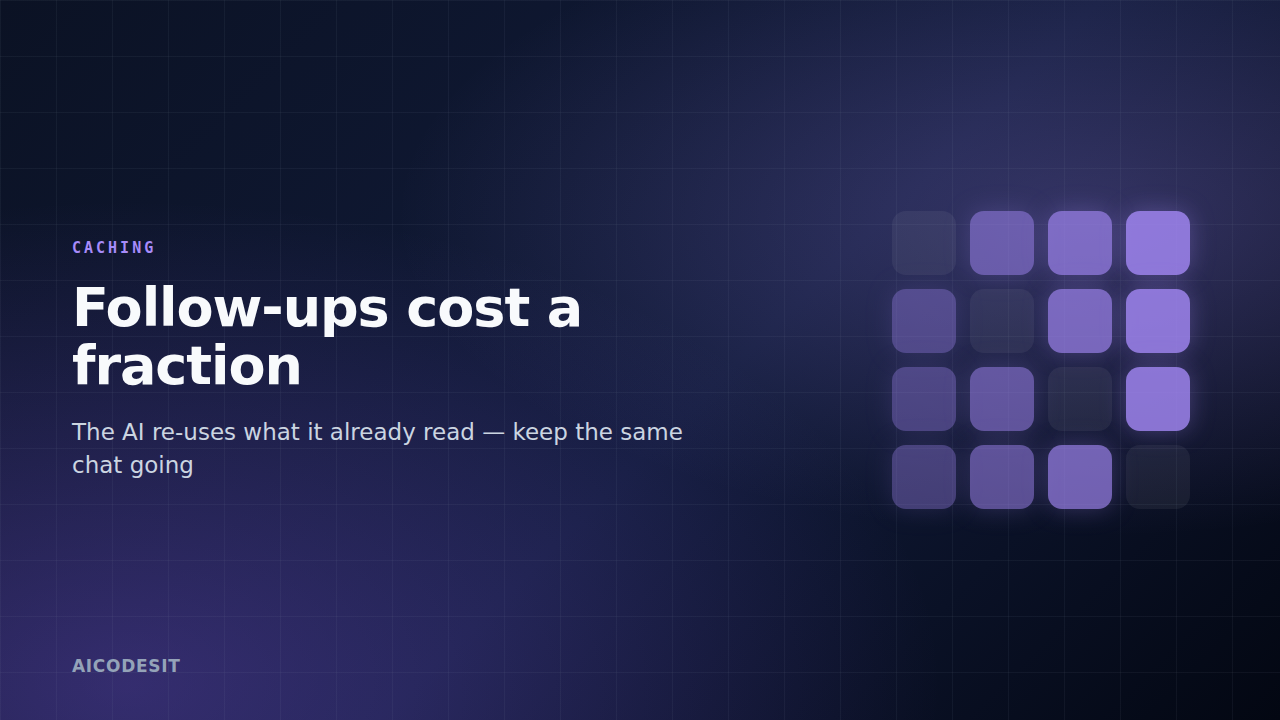
So the first tip is about rhythm: when you are building something, keep the conversation going. Answer the AI, ask for the next change, check the preview, continue. Short, focused back-and-forth in one chat is the cheapest way to build.
Tip 2: Why Medium is the sweet spot for AI credits
Not every model caches equally well. Our Medium model most probably runs on a Claude model from Anthropic, and Claude models are excellent at caching. In the last 30 days, more than half of everything Medium read was served from the cache.
That makes Medium the best value for most building work: it is strong enough for real apps, and the longer you stay in the same chat, the cheaper each reply becomes. If you only remember one tip from this post, make it this one.
For a deeper look at how models compare on real projects, see our breakdown of Aicodesit vs Claude Code token usage.
Tip 3: Keep the momentum
The cache doesn't last forever — only a few minutes. If you come back hours later to the same giant chat, the AI has to read the whole history from scratch again.
So plan your sessions: build in focused blocks, and send the next message while the last answer is still fresh. If you need a long break in the middle of a big chat, consider compacting first (see Tip 6).
Tip 4: Pick the right model for each job
The most common way to waste AI credits is using the strongest model for a one-word change. Each model in the menu has a job:
| Model | Best for |
|---|---|
| Unlimited | Small edits: changing a text, a colour, a link. It doesn't use your AI allowance at all. |
| Low | Light, routine changes on an app that already exists. |
| Medium | Most building: new pages, features and long sessions — the best value thanks to caching. |
| Maximum | Hard problems: complex logic, tricky bugs and big features that need careful planning. |
A good habit: start a big feature on Medium, switch to Maximum only when the AI gets stuck, and finish small polish tasks on Unlimited.
Tip 5: Master the context ring
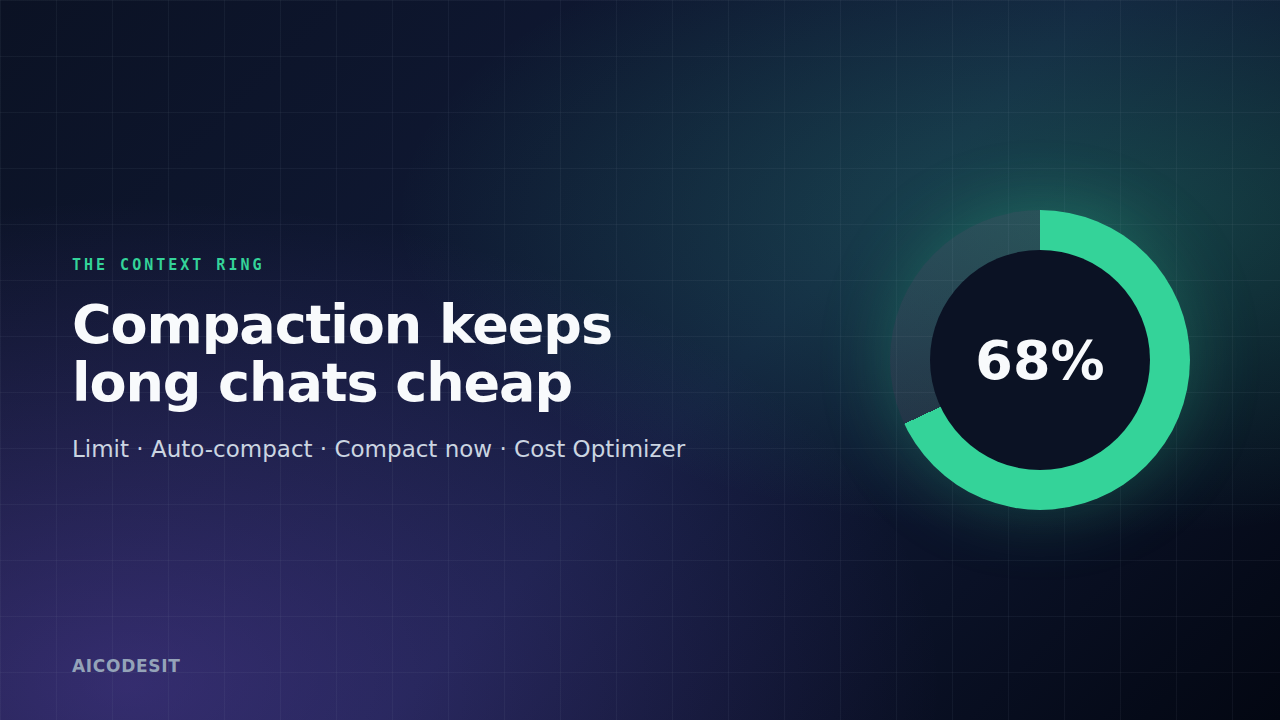
Next to the chat box there is a small ring. It shows how much the AI has to read on every reply — your conversation plus files. When the ring is nearly full, every message carries a lot of history, and your AI credits drain faster.
Click the ring to open the context settings. You will see how much of the context is used, a breakdown of what takes the space, and the controls described in the next tips.
Tip 6: Use compaction to save AI credits in long chats
Compaction is how long chats stay affordable. When a conversation gets big, the AI writes a summary of everything important — decisions, files, open tasks — and continues from that summary instead of the full history.
- Limit — how big the conversation may get before it is summarised. The default is 200K tokens; you can choose anything from 50K to 1M. A lower limit means each reply reads less.
- Auto-compact — summarises automatically when the limit is reached. Leave it on.
- Compact now — summarise right away, for example after finishing a big task.
We wrote a full explainer on long AI chats and context compaction, and a deep dive on how Claude Code-style compaction works if you want the details.
Tip 7: Choose the right compaction mode
In the context settings you can choose between two compaction modes:
- Claude compaction (default): the chat is sent exactly as it is, which keeps caching at its best. Ideal for normal building sessions.
- Cost Optimizer: once a turn is finished, old tool results — long file reads and command output — are emptied. The AI can still fetch them back if it needs them. Best for very long sessions where the AI reads lots of big files.
Our rule of thumb: keep Claude compaction for everyday work, switch to Cost Optimizer for marathon sessions, and press Compact now between big tasks.
Tip 8: One chat per task
A chat that started with your landing page, moved on to a booking form and is now fixing the footer carries all of that history into every reply. That history costs AI credits on every single message.
Start a new chat for each new topic, and keep going in the same chat while you work on the same thing. You get the best of both worlds: caching inside a task, and a clean, small context for the next one.
Tip 9: Write specific prompts
Vague requests make the AI search and read more of your project. Specific requests let it go straight to the right place.
- Instead of "fix the layout", write "make the pricing cards on the home page stack on mobile".
- Name the page or file when you know it: "on the contact page, add a phone field below the email field".
- Describe what "done" looks like: "the button should be green and centred under the form".
Specific prompts don't just save AI credits — they also get you the right result faster, with fewer follow-up corrections.
Tip 10: Batch small changes
Five separate messages for five tiny changes means five replies, each re-reading the conversation. One message with a short list of five changes means one reply.
Collect small tweaks while you review the preview, then send them together. It is one of the easiest ways to save AI credits, and the AI handles a clear list very well.
Tip 11: Let the AI remember your project
The AI can save short notes about your project in its project memory — your style, your rules, what the app is for. Without memory, you end up explaining the same things again in every new chat, and every explanation costs AI credits.
When you make an important decision ("we always use the blue brand colour", "prices are in euros"), ask the AI to remember it. Future chats start with that knowledge already in place.
Tip 12: Keep an eye on the tank
The fuel tank in the IDE shows how much AI usage you have left in the current 5-hour and weekly windows, plus any purchased credits. Before a big session, check it — and plan big work for when the tank is full.
Purchased AI credits never expire and take over automatically when a window runs out, so a small top-up is a good safety net before an important launch. You can compare plans and allowances on our pricing page or read how our Free, Basic, Pro and Max plans work.
How the 5-hour and weekly windows work
Your plan's AI allowance is spread over two windows, so nobody can use a whole month in one afternoon by accident — and so the AI is always available again soon.
- The 5-hour window covers a share of your allowance. When it runs out, it refills five hours after it started.
- The weekly window covers a larger share and refills every week.
- Purchased AI credits sit on top of both. When a window is empty, credits keep the AI working.
The practical lesson: spread big building sessions over several days, and use the cheap habits from this guide inside each session. You get far more done per window when follow-ups are cached and the context stays small.
Example: one feature, built three ways
Imagine you want to add a booking form with a date picker and an email confirmation to your site. Here is how the same feature can cost very different amounts of AI credits.
The expensive way
You open the same chat you have used for two weeks, switch to Maximum, and type "add booking". The AI has to read a huge history, guess what "booking" means, search the project, and you then send six small correction messages over an afternoon, with long breaks in between. Every correction re-reads the big history without the cache.
The better way
You start a new chat, pick Medium and write: "On the contact page, add a booking form with name, email, a date picker and a time select. Save bookings to the database and send a confirmation email." The AI goes straight to the right page. You review the preview and send your corrections in one list.
The best way
You do the same as above, but you also asked the AI earlier to remember your brand colours and form style, so it gets the design right first time. When the feature is done, you press Compact now before moving on. The whole feature costs a fraction of the expensive way — with a better result.
A step-by-step efficient session
- Check the tank. Make sure you have room in the current window, or a few credits as a safety net.
- Start a new chat for the feature you want to build today.
- Pick Medium unless the task is tiny (Unlimited) or very hard (Maximum).
- Write one specific first message with the page, the parts and what "done" looks like.
- Review the preview and collect your corrections into one list.
- Send follow-ups quickly while the cache is fresh.
- Save decisions to memory when they will matter again.
- Compact or start fresh when the feature is done.
Follow this loop for a week and you will notice your AI credits lasting noticeably longer, without changing what you build.
Prompt templates you can copy
Good prompts save AI credits because the AI doesn't have to guess. Copy these and fill in the blanks:
- New feature: "On the [page], add [feature] with [parts]. It should [behaviour]. Keep the current design."
- Design change: "On the [page], change [element] to [style]. Don't change anything else."
- Bug fix: "On the [page], when I [action], [what happens] instead of [what should happen]. Please find the cause and fix it."
- Batch of tweaks: "Please make these changes: 1) … 2) … 3) …"
- Memory: "Remember for this project: [decision]."
The phrase "don't change anything else" alone saves a surprising amount of work — it stops the AI from reading and rewriting more of your project than needed.
Quick cheat sheet
| Situation | What to do |
|---|---|
| Building a new feature | Medium, one chat, keep the momentum |
| Tiny text or colour change | Unlimited model, batch several tweaks |
| Stuck on a hard bug | Switch to Maximum for that problem only |
| Finished a big task | Press Compact now or start a new chat |
| Marathon session with big files | Switch the compaction mode to Cost Optimizer |
| Important project decision | Ask the AI to remember it |
Four questions before you press send
Before every bigger message, ask yourself:
- Is this the right chat? If the topic changed, a new chat will be cheaper.
- Is this the right model? Tiny change, normal build or hard problem?
- Is it specific? Does the AI know which page and what "done" looks like?
- Can I add the other small changes too? One list beats five messages.
These habits are not unique to Aicodesit — professional developers using AI tools follow the same rules. Anthropic's own guide to managing costs in Claude Code recommends the same ideas: compact long conversations, keep tasks focused and write specific instructions. We simply built those switches right into the IDE so you can use them with one click.
Common mistakes that waste AI credits
After looking at how 2,000 builders use the AI, the same few patterns come up again and again:
- One endless chat for everything. It feels convenient, but the history grows on every message.
- "Check everything" requests. A full review makes the AI read your whole project. Ask for a review only when you really need one.
- Maximum for small tasks. The strongest model is worth it for hard problems, not for changing a heading.
- Re-explaining the project in every new chat. Save it to memory once.
- Long breaks in the middle of a huge chat. The cache expires, and the next message reads everything again.
FAQ about AI credits
Do follow-up messages really cost less?
Yes, in most cases. Thanks to caching, a follow-up in the same chat re-uses most of what the AI already read, so it costs a fraction of a fresh message.
Will compaction make the AI forget things?
The summary keeps decisions, files and open tasks, and recently changed files are attached after compaction. For things that must never be forgotten, use project memory.
Which plan gives me the most AI credits for my money?
Every paid plan includes a monthly AI allowance that grows with the plan: Basic, Pro and Max each include more AI usage than the one before, plus more websites and storage. If you build often, a bigger plan is usually better value than topping up credits again and again. You can compare everything on the pricing page.
Does the Unlimited model really cost nothing?
Yes — the Unlimited model doesn't use your AI allowance. It is great for small edits and quick questions, while the stronger models are worth it for bigger building work.
Do purchased AI credits expire?
No. Purchased credits stay on your account until you use them, and they are used automatically when a 5-hour or weekly window runs out.
What's next
Thank you again for being one of the first 2,000. Try these tips in your next session and tell us how far your AI credits go — reply to any of our emails or write to [email protected]. We read every message.
Ready to try them? Open your dashboard and start building.